With YouTube Shorts pulling in over 200 billion daily views, your YouTube Shorts advertising strategy should be moving well past the experimental phase.
If your organic Shorts content is already getting traction, the next move is straightforward: turn it into a paid campaign.
But between campaign types, ad specs, auction-based pricing, and creator-level measurement, there's a fair amount to get right before you spend a dollar.
This guide covers how to advertise on YouTube Shorts end to end: choosing the right campaign type in Google Ads, understanding specs and pricing, setting up and targeting a campaign, and measuring which creators and creative drove results.
TL;DR
Key principles worth knowing before you spend on YouTube Shorts Ads:
- Only two Google Ads campaign types: 1. Video Reach (Efficient reach) and 2. Video View let you specifically target the Shorts placement. Demand Gen, Performance Max, and App campaigns can include Shorts automatically as part of a broader buy, but you can't purchase Shorts-only inventory through them.
- Shorts ads run in a vertical 9:16 format, are skippable instantly by swiping, and Google recommends keeping them under 60 seconds.
- There's no fixed price for YouTube Shorts ads: they're bought through auction-based bidding models: CPM, CPV, tCPA, tROAS, and Maximize Conversions, and Google doesn't publish an official rate card.
- Setting up a Shorts campaign follows the same basic Google Ads flow as any video campaign, with a handful of Shorts-specific decisions around placement, creative, and targeting breadth.
What Are YouTube Shorts Ads?
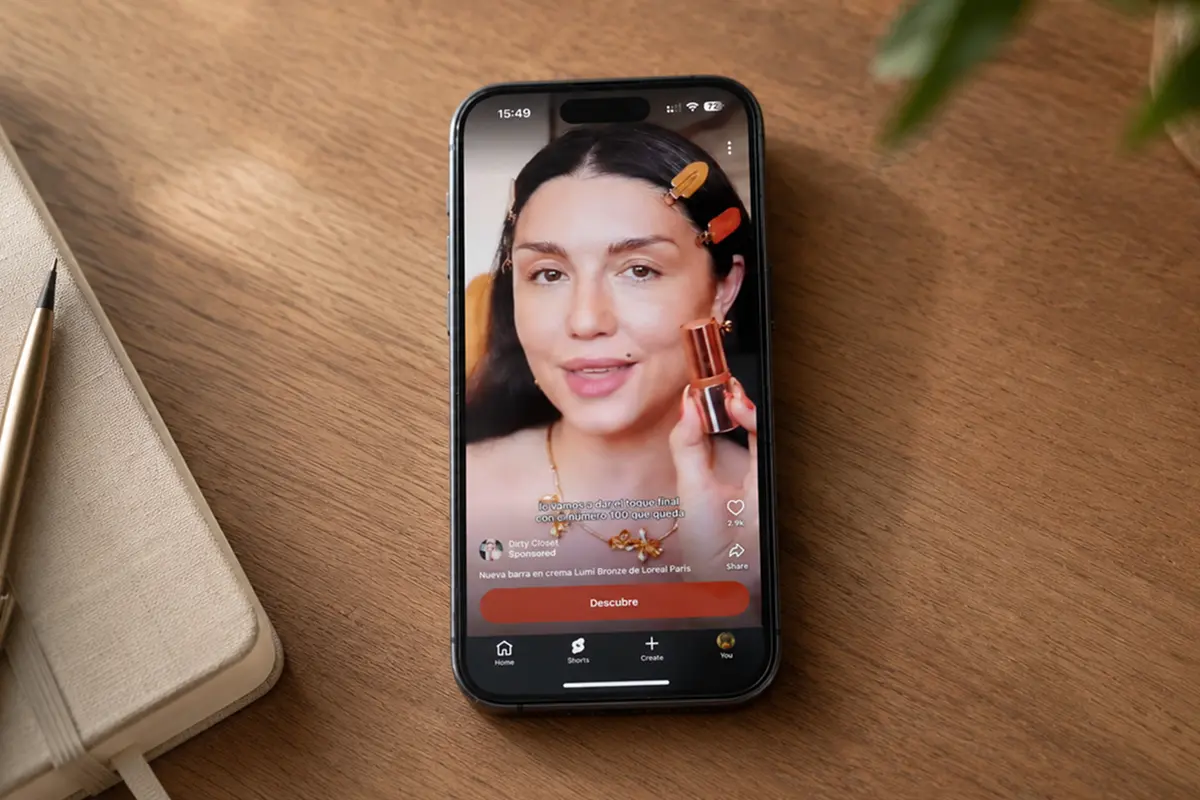
YouTube Shorts ads are vertical video ads that appear between organic Shorts in the Shorts feed, bought through Google Ads. They tend to perform best when the creative feels like organic content, which is why so many brands run creator-made or UGC-style videos as their YouTube Shorts advertising.
Knowing how to make YouTube Shorts is the first step.
YouTube Shorts vs TikTok Ads vs Instagram Reels Ads
YouTube, TikTok and Instagram all sell vertical, short-form video ad inventory, but they differ meaningfully in audience, minimum spend, and format.
Budget minimums and CPMs shift often across all three platforms, so treat the figures below as directional and confirm current numbers in each platform's ads manager before you commit budget.
YouTube Shorts Ad Specs
The good news for UGC-style content: most creator-shot video is already vertical and phone-native, so it naturally fits these YouTube Shorts advertising specs without the cropping or enhancement workarounds brands need when adapting studio-shot, horizontal footage.
YouTube Shorts Ads Specs: the details you need before you brief a creator or upload creative.
How Much Do YouTube Shorts Ads Cost?
YouTube Shorts ads don't have one fixed price. They're bought through Google Ads auctions (or, for premium placements, direct reservation), and what you pay depends on the bidding model you choose, how competitive your audience and industry are, and how well your creative performs.
Google doesn't publish an official rate card, and third-party benchmark figures vary widely. Commonly cited ranges put CPV somewhere around $0.01-$0.30 and CPM somewhere in the single digits up to roughly $20, depending on format, industry, and season.
Treat any specific number you see quoted online as directional, and confirm real costs against your own account and vertical.
The actual cost you pay is driven primarily by a few key variables:
- Targeting specificity: narrower audiences can raise costs and limit scale; Google's own Shorts guidance recommends broadening rather than over-narrowing targeting, especially early in a campaign.
- Ad relevance and creative performance: ads people actually watch and engage with tend to earn more efficient delivery than ads that get swiped past immediately.
- Auction competition and seasonality: costs typically rise in Q4, with the sharpest spikes around Black Friday and Cyber Monday as advertiser demand surges.
- Bidding strategy: Smart Bidding strategies (tCPA, tROAS, Maximize Conversions) generally become more efficient than manual bidding once an account has enough conversion volume to calibrate them.
- Audience size: very small or very tightly defined audiences reduce the inventory the algorithm has to work with, which can push costs up.
How to Advertise on YouTube Shorts
Once your specs and budget expectations are set, how to run YouTube Shorts ads comes down to a repeatable process: pick the right campaign type, produce native creator content, configure the campaign correctly in Google Ads, and set up targeting and tracking before you spend.
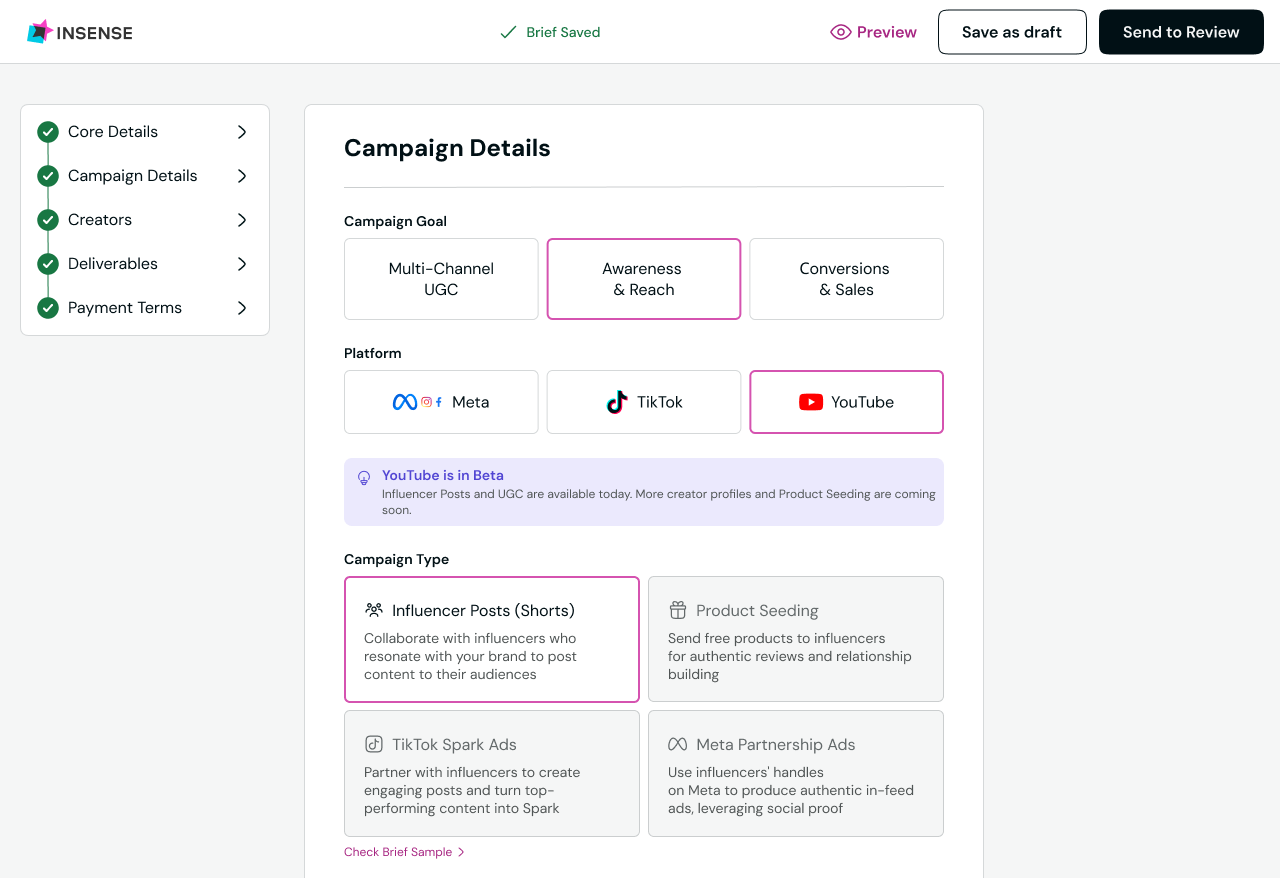
Choose the Campaign Type Based on the Goal
Each Google Ads campaign type maps to a different business goal, and only two let you specifically isolate the Shorts placement:
Prepare Native Shorts Creative
Before you touch Google Ads, make sure the creative itself is built for the feed, and for most brands, that means leaning on UGC and creator content rather than a repurposed studio ad.
Native vertical footage, a hook in the first two to three seconds, the product shown early, captions for sound-off viewing, and more than one creator or version ready to test all matter more than production polish.
Set Up the Campaign in Google Ads
Step by step:
- Create a new campaign. In Google Ads, start a new campaign from scratch rather than duplicating an existing one. Shorts-specific settings (placement, subtype eligibility) are easiest to get right when you're not inheriting settings from an old campaign built for a different goal.
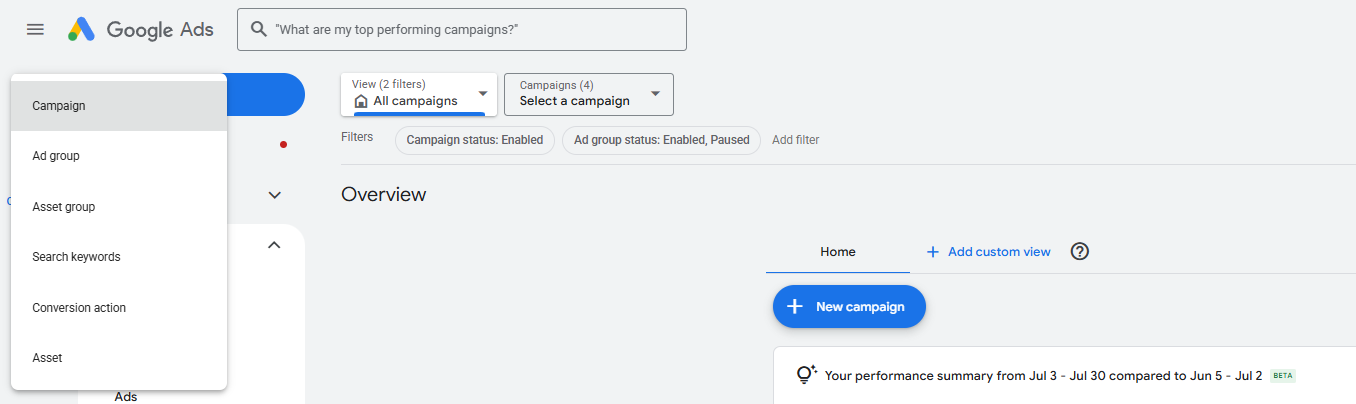
- Select the objective and campaign type. Pick the objective that matches your actual goal e.g. Awareness/Reach, Consideration/Views, or Conversions/Sales, as Google Ads uses this to determine which campaign types you can choose from next. This is also the point where you're implicitly choosing between Video Reach, Video View, Demand Gen, Performance Max, or App campaigns.
- Select the appropriate subtype. Within a campaign type, you often need to choose a more specific subtype. For Video Reach campaigns, that means picking "Efficient reach" specifically - this is the only Video Reach subgoal that supports YouTube Shorts as a placement, so choosing a different subtype (like "Target frequency") can limit or exclude Shorts delivery.
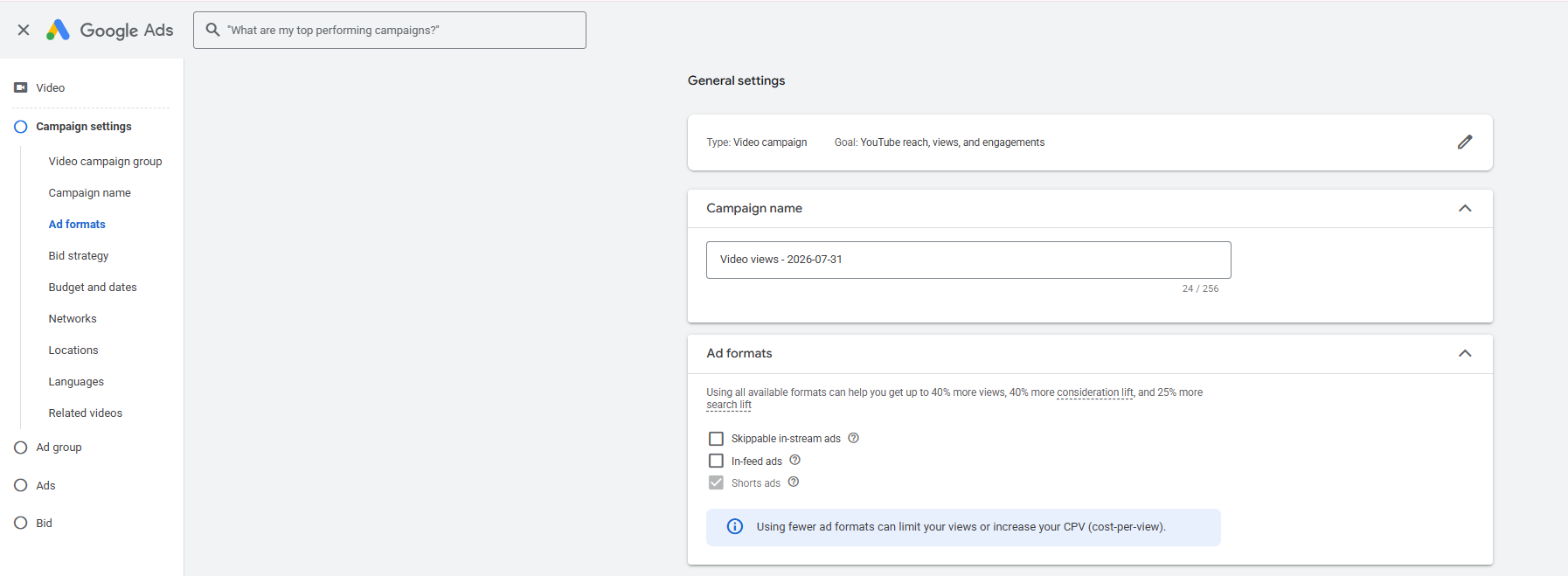
- Configure inventory and placements, and check the box for YouTube Shorts. This is where you actually turn Shorts on. Look for the "Multi-format ads" or inventory/placements section during campaign construction and check "YouTube Shorts" alongside (or instead of) other placements like in-stream. This setting can typically be changed later in campaign settings if you want to adjust delivery mid-flight.
- Add the vertical creative. Upload your video (it needs to already be live on YouTube, public or unlisted, before it's eligible to run as an ad) and add your headline, description, and CTA text. This is the step where vertical 9:16 creative matters most. If you only have horizontal footage, Google can auto-generate a vertical cut, but a purpose-shot vertical asset performs better.
- Set the budget and bidding strategy. Choose a bid strategy that matches your objective: CPM for pure awareness, CPV for view-based consideration goals, or tCPA/tROAS/Maximize Conversions for performance goals (the latter two require enough conversion history to calibrate). Google's Reach Planner and Traffic Estimator can help forecast delivery before you commit budget.
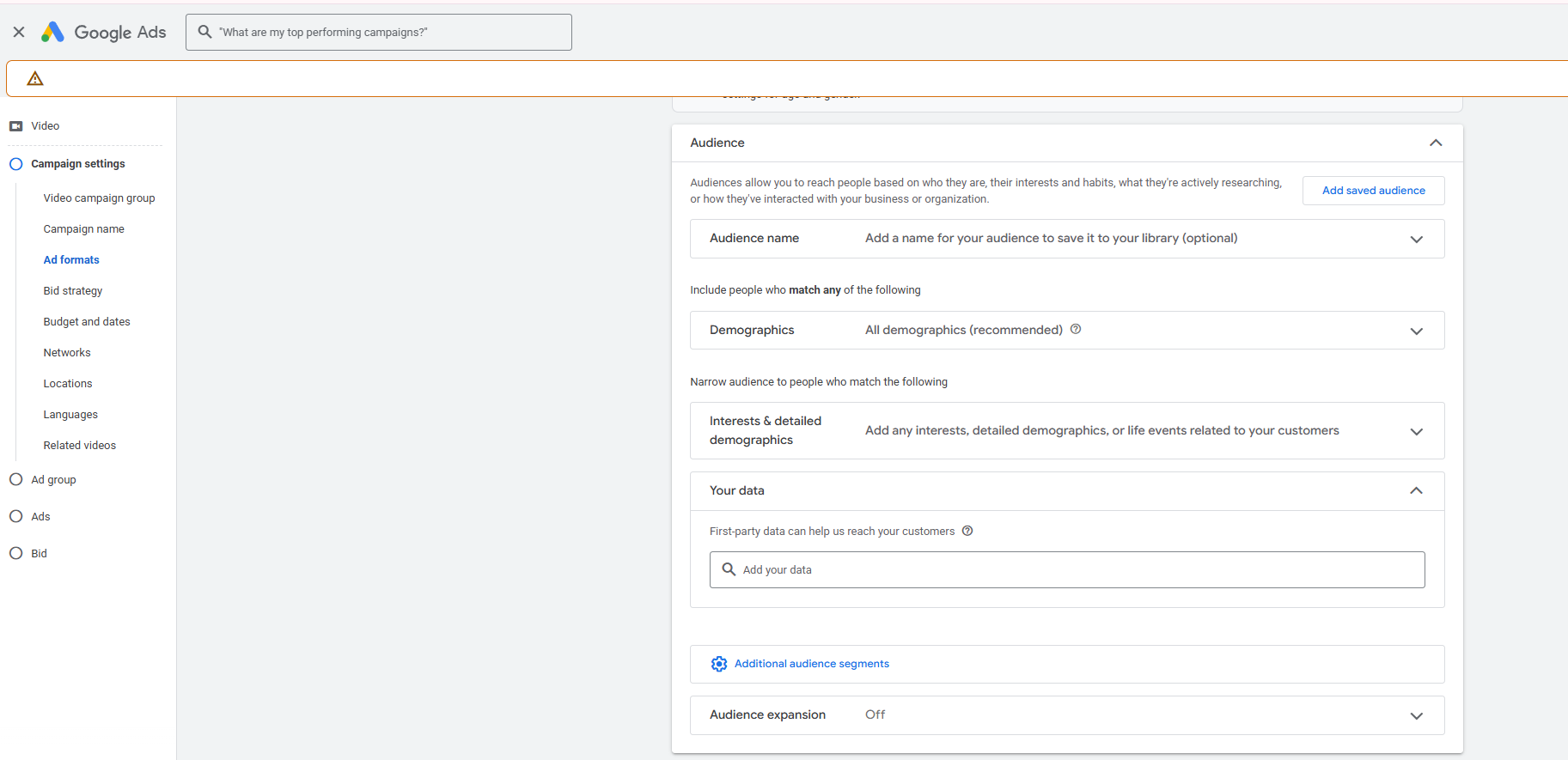
- Configure audiences. Layer in your targeting. Remarketing lists for warm audiences, in-market and affinity segments for prospecting, custom segments when intent signals matter. Google's own guidance for Shorts specifically recommends starting broader rather than narrower, since overly restrictive targeting can limit scale on this placement.
- Add the final URL and CTA. Set the destination page and choose your CTA button text (Shop Now, Learn More, etc.). Keep in mind the CTA button doesn't appear instantly - it shows up a few seconds into the ad depending on campaign type, so your creative's opening seconds still need to work on their own.
- Set conversion tracking. Make sure your conversion actions (purchases, leads, sign-ups) are set up in Google Ads or linked in from Google Analytics before you start optimizing toward them. This isn't just good practice; Smart Bidding strategies like tCPA and tROAS literally can't function without enough tracked conversion data to learn from.
- Add UTM parameters. Append UTM tags to your final URL (via Campaign URL Options in settings, or an account-wide Final URL suffix) so traffic from this campaign shows up correctly in GA4 or any non-Google analytics tool. This matters more than it sounds like. Without it, Shorts traffic can get lumped in with other campaigns or misattributed.
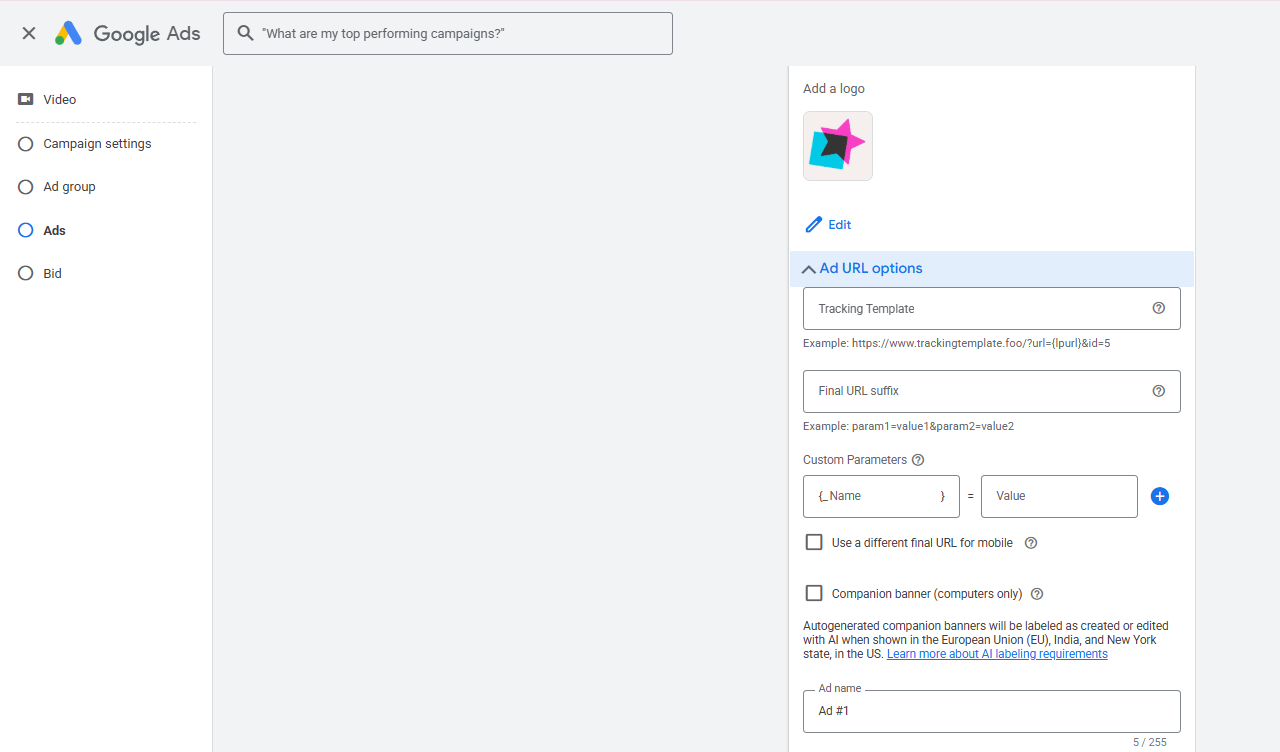
- Review the Shorts preview. Before launching, use Google Ads' built-in preview panel to see exactly how your ad will render in the Shorts feed, including where the action buttons (like, comment, share) and your channel name/description will sit on top of your creative, so you can catch anything important getting covered.
- Launch the campaign. Submit the campaign, which goes through Google's ad review/approval process before it starts serving. Approval typically happens within a day, though it can take longer if the review flags anything.
Set Budget, Targeting, and Tracking
Before you launch, make sure you've covered:
- Use remarketing for warm audiences. People who've visited your site, engaged with your content, or interacted with your YouTube channel are typically the most efficient audience to target on Shorts, since they already have some familiarity with the brand. This is usually the audience worth prioritizing budget toward first, since it tends to convert at a lower CPA than cold prospecting.
- For reaching new people, in-market audiences (people actively researching or comparing products like yours) and affinity audiences (people with relevant longer-term interests) are Google's standard prospecting segments. In-market tends to skew closer to purchase intent, while affinity is broader and better suited to awareness-stage campaigns.
- Custom segments let you build an audience around specific search terms, URLs, or apps people have engaged with, useful when you want to reach people actively searching for solutions like yours, or who've shown interest in a competitor. This gives you more control than the standard Google-defined segments, at the cost of some scale.
- Avoid over-narrowing the audience at the start. Google's own guidance for Shorts specifically recommends starting broader rather than layering on multiple narrow targeting criteria at once. Because Shorts inventory is high-volume, an overly restrictive audience can starve the campaign of scale before it has a chance to find its footing. It's usually better to broaden first and tighten later based on what the data shows.
- Conversion tracking needs to be live and collecting data before you switch to a conversion-based bidding strategy. Smart Bidding options like tCPA and tROAS rely on historical conversion data to calibrate, and won't perform well (or may not be available at all) without it. Set this up at campaign launch, not after you've already decided to optimize toward it.
- Tagging your final URLs with UTM parameters ensures traffic from this specific campaign, and ideally, this specific creator or creative version shows up correctly in GA4 or whatever analytics tool you use outside Google Ads. Without it, Shorts traffic can get lumped in with other campaigns, making it harder to isolate what's actually driving results.
Launch With a Creator-Level Measurement Plan
Before launch, give every asset a naming structure that identifies:
- Creator. Tag which creator made the asset: by name or a consistent ID (e.g., "jane_d" or "creator047"). This is the anchor the rest of the structure hangs off of: without it, you can't answer "which creators are worth re-booking" no matter how good your other tracking is.
- Hook. Label the specific opening/angle used in the first few seconds (e.g., "question-hook," "bold-claim," "pov-open"). Since the hook is the single highest-leverage variable in a Shorts ad, this tag is what lets you compare hook styles against each other across different creators and products, not just within one video.
- Product angle. Identify which product benefit or use case the asset leads with (e.g., "convenience," "price," "before-after"). This separates creative performance from product-market fit. A weak result might mean the hook didn't work, or it might mean that particular angle doesn't resonate, and the naming structure is what lets you tell the difference.
- Tag which call-to-action was used (e.g., "shop-now," "learn-more," "limited-offer"). CTAs can meaningfully change conversion rate on their own, so tracking this separately from the rest of the creative lets you test it as its own variable rather than baking it into "the ad" as a single unit.
- Edit version. Note which cut or recut this is (e.g., "v1," "v2-trimmed," "v3-recaptioned"). This matters because the same raw footage often gets recut multiple times for different placements or lengths. Without a version tag, it's easy to lose track of which specific edit actually drove a result.
- Organic or paid origin. Flag whether the asset started as an organic post that's now being boosted, or was built directly for paid from the start (e.g., "organic-boost" vs. "paid-native"). This distinction matters because organic-first content often carries social proof and a different performance pattern than something produced purely for media spend.
- Tag which campaign and audience segment the asset ran in (e.g., "prospecting-inmarket" or "retargeting-90day"). The same creative can perform very differently across a cold prospecting audience versus a warm retargeting list, so this tag is what lets you separate "the creative didn't work" from "the creative didn't work for this audience."
How to Measure Which YouTube Shorts Ads and Creators Performed
To identify which creators actually performed, teams need to connect Google Ads results back to the creator and creative variables established before launch. A view confirms exposure; it doesn't confirm the ad changed anyone's mind or drove a sale. Measurement works best across three layers:
For ecommerce brands specifically, it's worth measuring the full path: hook, click, landing page, conversion, and assisted impact, rather than stopping at the ad itself. A creator's video might not get the last click, but it can still be the reason a customer searched for the brand or converted through another channel days later.
YouTube Shorts Ads Examples
The strongest-performing Shorts ads share one thing in common: they read as creator content, not a brand ad. Three examples worth studying:
Glossier - Product Demonstration
A short, native-feeling product demo: a real creator (Aisha Potter) applies Glossier's Lip Line liner all in 10 seconds with no voiceover or sales pitch. The demonstration itself is the proof, viewers watch the actual application happen and judge the result themselves.
Amos Peelerz - Review
This product review video follows a ranking/rating format. Creator eatsbyrachel (519K subscribers, food/candy content) tries every flavor of a product and rates them one by one, in 58 seconds, with 5.7M views.
Copenhagen Grooming - Before /After
The creator in this video shows strong visual proof of this product working with before and after video footage, alongside their honest feedback of the beard growth kit.
Common YouTube Shorts Ads Mistakes
Most underperforming Shorts campaigns trace back to one of these:
- Running horizontal ads that weren't built for a vertical frame, which creates awkward cropping, dead space, or cut-off text.
- A slow start - a logo animation, black screen, or long establishing shot before anything interesting happens.
- No clear CTA, leaving viewers unsure what to do even if the ad held their attention.
- Launching with only one creative variation instead of testing multiple creators, hooks, and angles.
- A weak landing page experience that undoes a strong ad the moment someone clicks through.
- Measuring results by views alone instead of CTR, CPA, and ROAS. A view confirms exposure, not impact.
How Insense Helps Produce YouTube Shorts Ad Creative
Running YouTube Shorts advertising means keeping a paid media team constantly supplied with new, native-feeling creative (new creators, new hooks, new angles) fast enough to outpace ad fatigue.
Insense is built to solve that specific issue: with a global creator marketplace of 115,000+ vetted creators that influencer and social media managers can brief directly using our interactive creative brief, build repeat relationships with, and turn into a steady, repeatable pipeline of Shorts-ready content, while your paid media team keeps full control of the campaigns running in Google Ads.
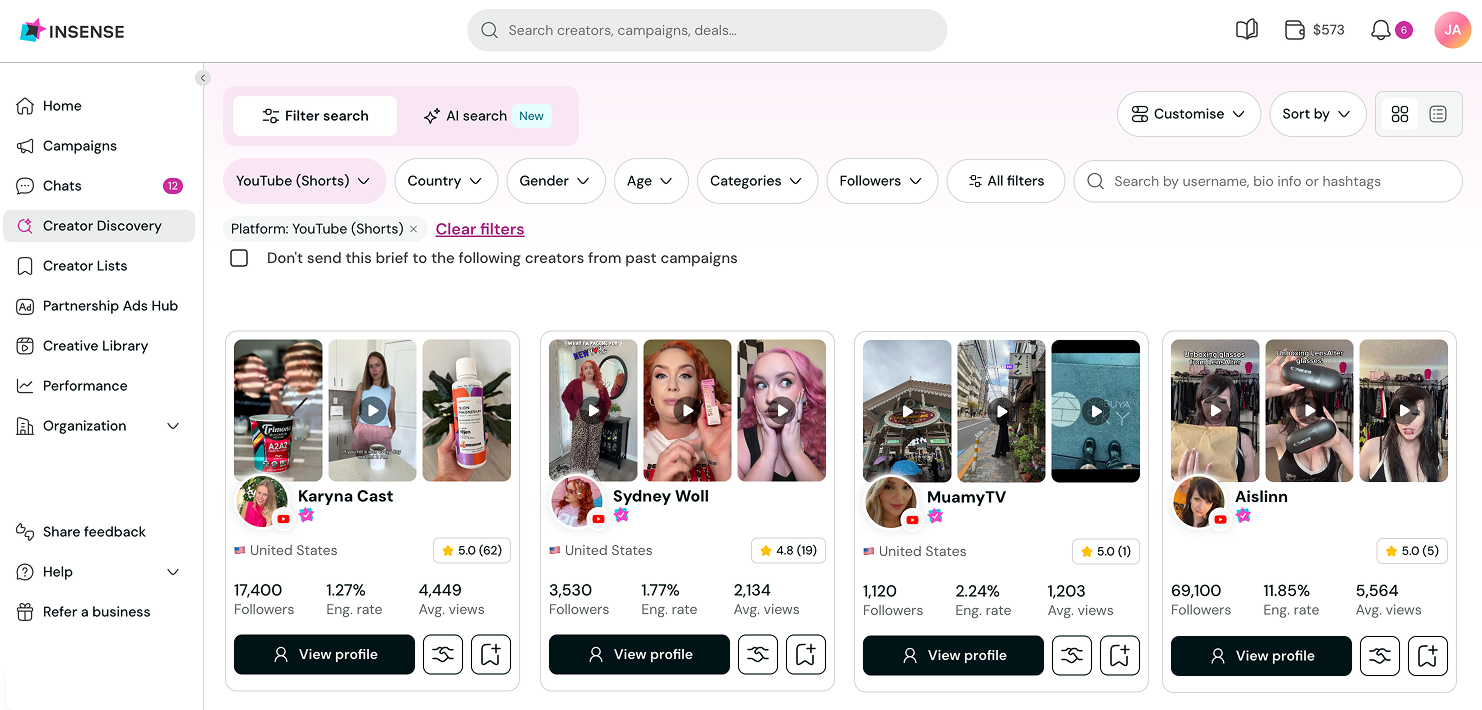
Creator applications typically come in within 48 hours, and our interactive creative brief tool means brands can prompt for multiple hooks, product angles, and CTAs upfront by asking for raw footage.
Over 3,500 DTC brands and agencies already use Insense to run UGC at scale. Book a demo or try it free today.
FAQs
The questions readers ask us most about YouTube Shorts advertising.
Can you run ads on YouTube Shorts?
Yes. YouTube Shorts advertising is available through Video Reach and Video View campaigns in Google Ads, which let you specifically target the Shorts placement, as well as through Demand Gen, Performance Max, and App campaigns, which can include Shorts as part of a broader, automated buy.
How do I run YouTube Shorts ads?
In short, how to run YouTube Shorts ads comes down to five steps: choose a campaign type that matches your goal, prepare native vertical creative, set up the campaign in Google Ads with Shorts enabled as a placement, configure targeting and conversion tracking, and launch with a creator-level naming structure in place so you can measure results afterward.
How much do YouTube Shorts ads cost?
There's no fixed price. Costs are set through auction-based bidding models: CPM, CPV, tCPA, tROAS, or Maximize Conversions, and vary by industry, targeting, creative performance, and season.
Are YouTube Shorts ads skippable?
Yes. Viewers can skip a Shorts ad instantly by swiping, with no countdown or forced viewing window, which is why the first few seconds of the ad matter so much.
.avif)